
Start your first lesson
Open Keating, connect a model, and turn one question into a conversation you can return to.
On this page
1. Open your learning space
Open https://chat.keating.help/ in your browser. You can begin on a phone, tablet, or computer without installing an app. Use the browser profile where you want to keep your lessons: conversations and settings are saved locally.
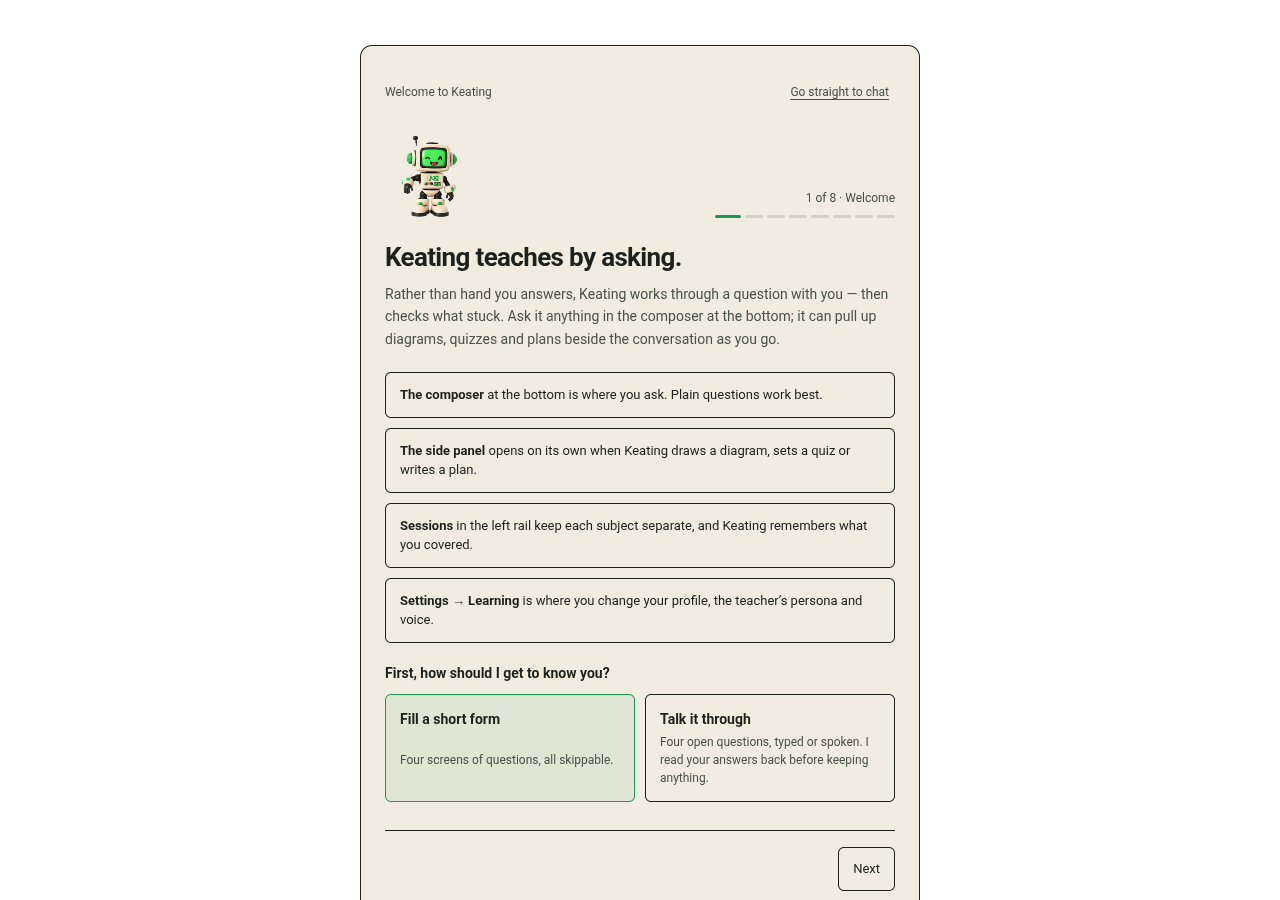
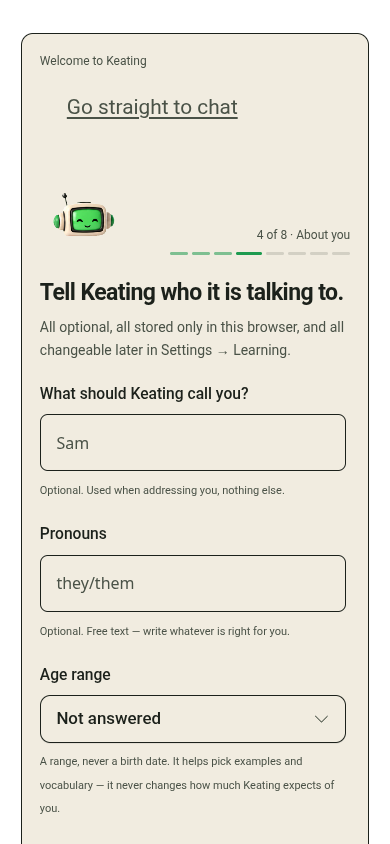
On your first visit, Welcome to Keating walks you through model access and a starting point. Choose Next to continue. Go straight to chat skips the walkthrough; you can still connect a model from the chat header or Settings.
2. Connect a model
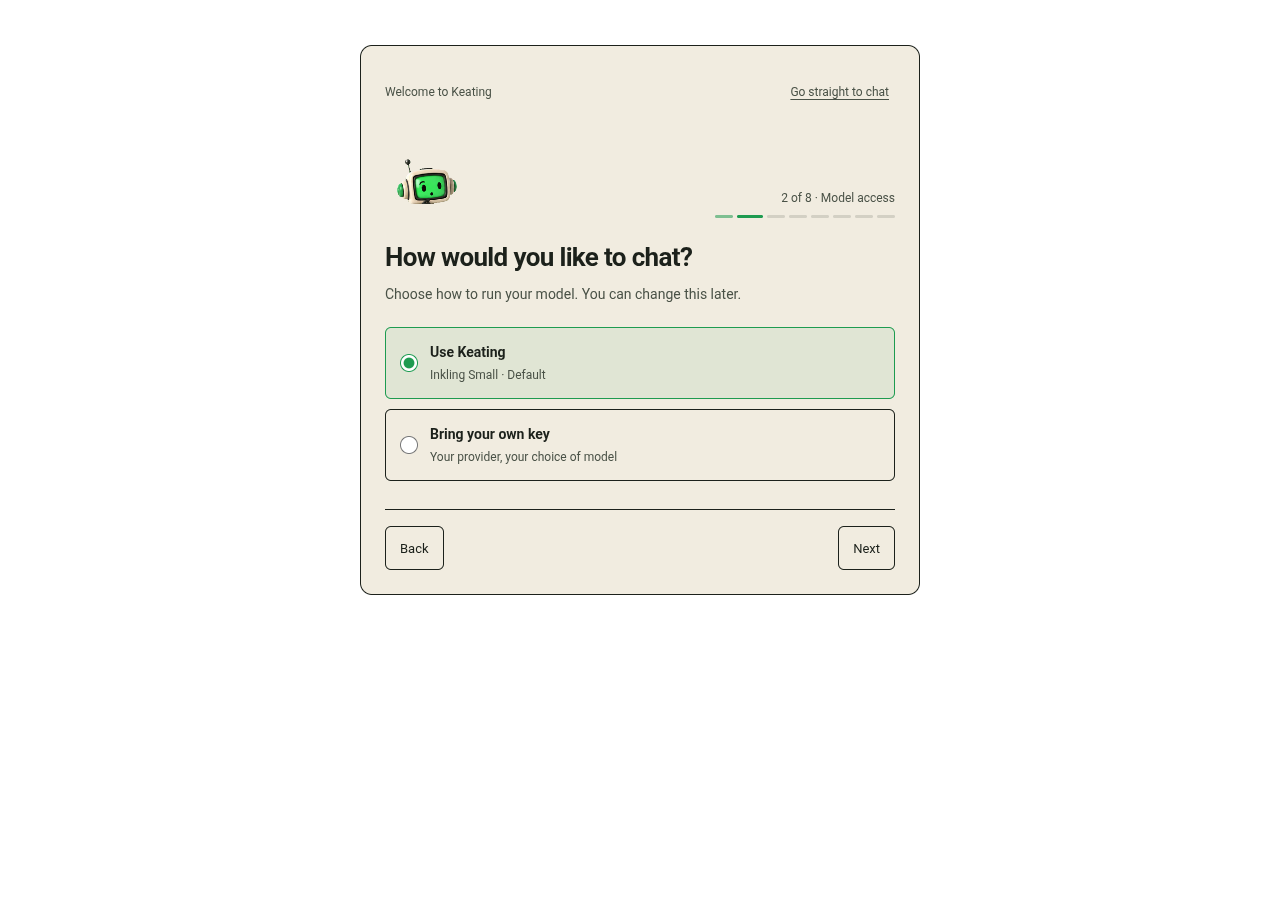
A model generates Keating's responses. Choose one way to connect before sending your first question. You can change the model later by selecting its name in the chat header.
- Use Keating selects Inkling Small. Choose Connect or create an account, then Sign up / Sign in to connect through Not Organic. Hosted responses depend on account access and available credit; completing sign-in alone does not confirm either.
- Bring your own key lets you use a model provider without a Not Organic account. Choose Choose a model and provider. Add the provider's API key in Settings → Models & Providers → Cloud Providers, or use Save key when API key required appears. The provider bills this usage separately.
- For a model that runs on your device, follow the offline tutor guide. Browser models need a compatible browser and a substantial initial download. Use an offline tutor appears in supported desktop builds.
3. Give Keating a starting point
In Your starting point, describe what you want to understand and what you already know. This is optional. Start chatting puts your starting point into the message box for you to review; it does not send it automatically.
Try: I can write a Python loop, but recursion confuses me. Help me trace a small example, then ask me to predict the next step.
Edit the message if needed and send it. You can also start with a question from a lesson, a concept you keep forgetting, or an explanation you want to test. A concrete starting point gives the conversation something useful to work toward.
4. Work through the question
Answer in your own words, including the part you are unsure about. If an explanation moves too quickly, ask for a smaller example or one question at a time. If you understand it, ask for a new problem that uses the same idea.
For example: I think the function stops when the input reaches zero. Give me an input where that stopping rule fails, and let me work out why.
If a response stops because of a key, account, or credit error, follow the action shown with the error. Check the saved message before sending another copy. The accounts guide explains Refresh balance and Retry response.
5. Return to a lesson or begin another
Use the sessions panel to reopen a previous conversation. On a narrow screen, Open sessions panel reveals it. Choose New session when you want to start a separate topic.
6. Keep a copy of your work
Your browser's saved lessons are not an account backup. Another browser or device can have a different session library even when you connect the same Not Organic account.
Open Learning usage, find Portable data, and choose Export portable JSON to download a copy. Do this before clearing site data, moving browsers, or removing an app. The privacy and data guide explains what the export includes and how to restore it.