Choose and connect a model
Find a model for your task, connect your own provider, or choose a model that runs on your device.
On this page
Open the model picker
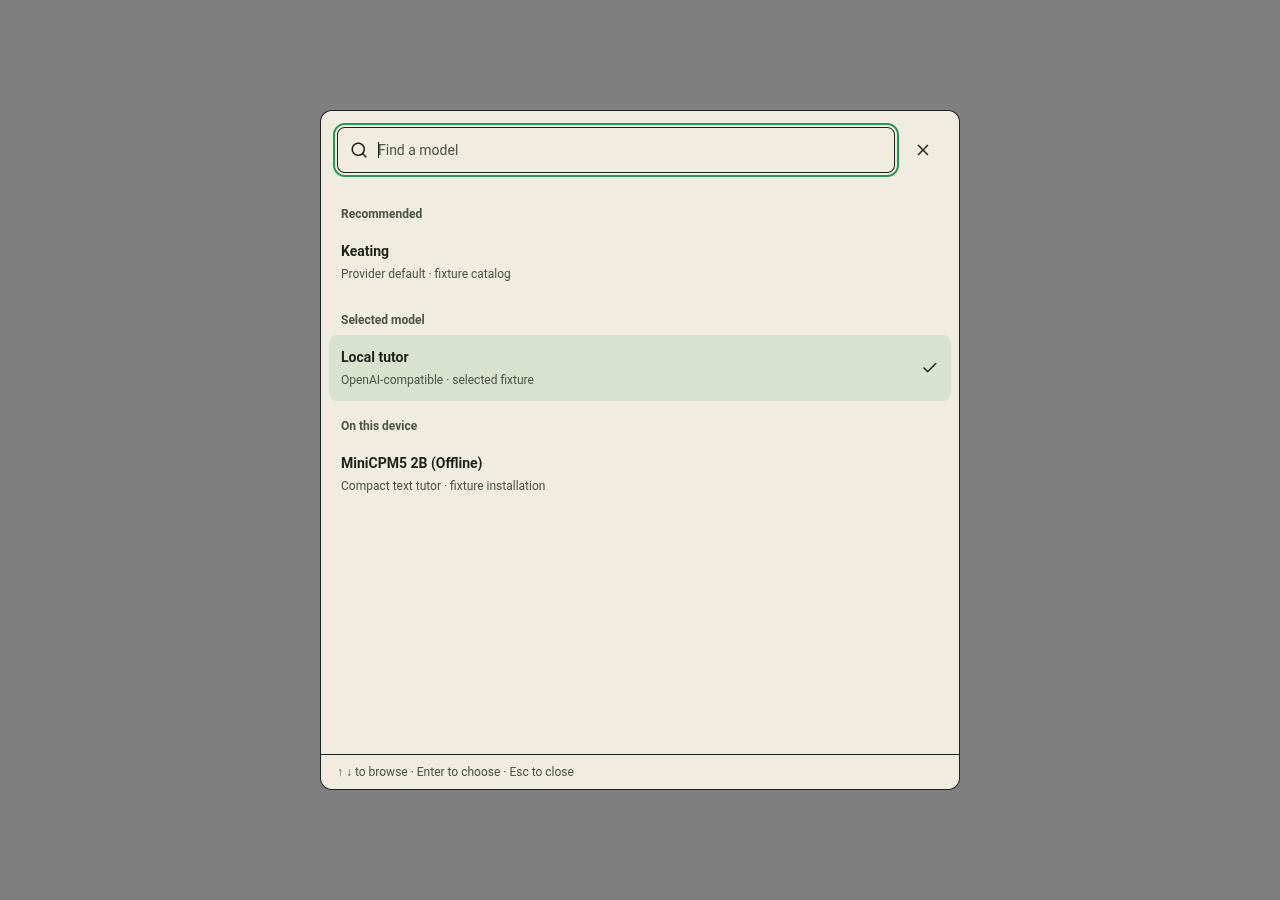
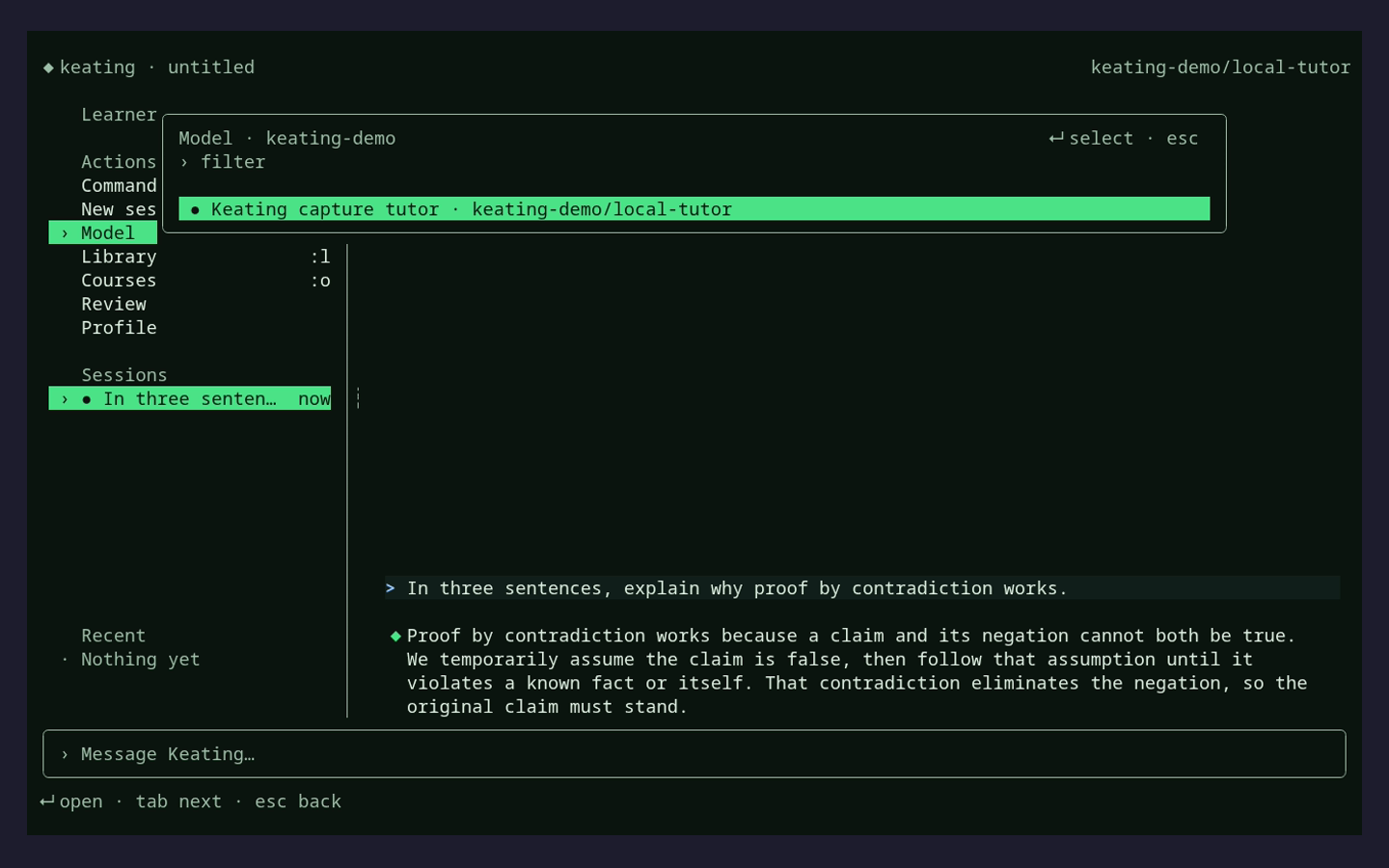
Select the current model's name in the chat header to open Find a model. Search by name, narrow the list with Provider, or use Use it for to find models for Step-by-step reasoning or Understanding images.
Open Model details to inspect a choice. Select a model to use it in the conversation. Wait for the current response to finish before changing models.
Use your own provider key
Bring your own key means your provider account supplies model access. You do not need a Not Organic account for this route. Create an API key with your chosen provider and check that the provider account has access to the model you select.
Open Settings → Models & Providers → Cloud Providers. For a provider with an API Key field, paste the key there and click outside the field to save it. If Keating instead opens API key required when you use a model, paste the key into that dialog and choose Save key.
Keys entered in the browser are stored in that browser's local settings. Enter keys in credential fields, not in the lesson conversation. Provider usage and charges remain with your provider account. Some provider entries offer their own sign-in flow; follow the controls shown for that provider.
Use Keating's hosted model
Inkling Small is the default offered by Use Keating in onboarding. Its account access is managed by Not Organic. Connect or create an account from onboarding, or find Not Organic Hosted under Cloud Providers and choose Connect Not Organic.
A hosted model needs a connection, permission to use the service, and sufficient account credit. If sign-in succeeds but a response does not, read the account or credit message before retrying.
Run a model on your device
Models with (Browser) in their name download into browser storage and generate responses on your device. MiniCPM5 2B (Browser) is the default browser-model option, with an approximately 1.84 GB download. Browser availability depends on compatible WebGPU support and enough device resources.
Selecting a browser model starts loading it. Wait for loading to finish before chatting. Model details shows download progress and cached files; Cancel stops an active download, and Delete download removes cached model files.
MiniCPM5 2B (Offline) is a separate choice in supported native apps. It uses the native offline tutor download, rather than the browser's model cache.
Match the model to your material
Use a model marked Understands images when you want it to inspect an image. Keating's current browser-model chat and native MiniCPM5 offline tutor accept text; a model family's name does not make those paths image-capable.
A recording needs an audio-capable model or a successful transcript of that recording. If you are preparing to work offline, transcribe the material while the required service is available and keep the text with your notes.
If a model is missing or will not respond
- Clear the search and reset Provider and Use it for. Check model and provider visibility in Settings → Models & Providers if a choice is still missing.
- For a key error, check the selected provider and replace its saved key if needed. A key for one provider does not connect every model in the picker.
- For a hosted credit error, use the account recovery controls or Choose another model to use a provider you have connected.
- For a browser loading error, read Models that run on this device in the picker. If the device is incompatible or cannot fit the model, choose another available model.