Prepare an offline tutor
Download a local text model, manage its storage, and check what will work before you lose your connection.
On this page
Check which version you are using
Supported native builds offer MiniCPM5 2B (Offline), a text tutor that runs on your device without provider credentials. Its optional model download is about 1.55 GB and is kept across app updates.
In the desktop app, look for Offline tutor in Settings → Models & Providers. If the panel is absent or says Offline runtime unavailable in this build, check the download page for a package that supports your device. If none is offered, use the browser app and check whether a browser model is available.
Download and select the desktop tutor
Downloading a model does not replace a model you have explicitly selected. Check the name in the chat header before starting your offline lesson.
- Connect to the internet and open Settings → Models & Providers → Offline tutor. Allow room for the approximately 1.55 GB download as well as your app and learning data.
- Choose Download offline tutor · 1.55 GB. Keep the app open while it downloads.
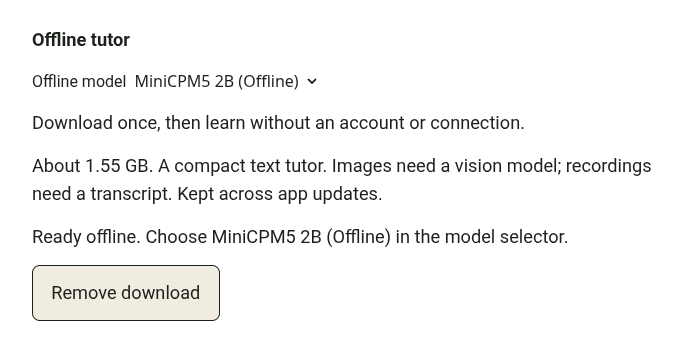
- Wait for Ready offline. A completed download is checked before the model becomes available.
- Open the model selector and choose MiniCPM5 2B (Offline). Send a short text question to check that it responds on your device.
Pause, resume, or reclaim space
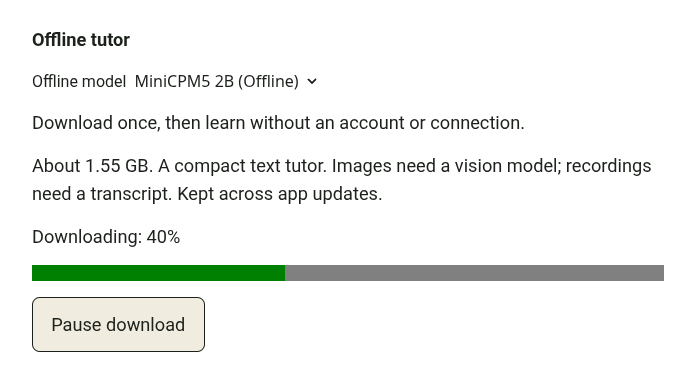
Use Pause download if you need to stop transferring the model. Resume download continues the saved download later. If a download or model check fails, read the error in the Offline tutor panel and retry when the connection and storage are ready.
Remove download deletes an optional model download. Stop any running response before removing it. You will need a connection to download the model again. A model bundled into an offline edition is part of that app instead of a removable optional download.
Use the controls in a native mobile build
If your native mobile build includes the offline runtime, open Settings → Offline tutor to download and manage the model. Downloading pauses when the app goes into the background; return to the app and resume it explicitly.
Support depends on the build and device. A mobile browser is using the browser path below. Development previews such as Expo Go do not include the native offline runtime.
Run a browser model locally
In the website's model picker, MiniCPM5 2B (Browser) uses a separate download of approximately 1.84 GB. Select it while connected and let loading finish. It requires compatible WebGPU support; the picker explains device limitations under Models that run on this device.
Browser model files are cached in that browser. Model details shows the cached size and Delete download controls. Clearing browser data can remove the download. Keep your work exported, and check that the page and model still work in the conditions you plan to use: cached weights alone do not guarantee that the website can reopen without a connection.
Try your lesson before going offline
Disconnect briefly and try a fresh text question with the local model selected. Reopen the app if that is how you will use it later. This checks your device and installed build before you rely on them away from a connection.
Local tutoring does not make online features available offline. Account sign-in, credit purchases, remote model requests, and downloading new material still need a connection. Images need a vision model, and recordings need an audio-capable model or a successful transcript.
If you switch from an online model while it has unfinished tool work, start a new lesson or return to that model. The native offline tutor cannot continue the online model's outstanding tool call.