
Return to sessions and review
Find an earlier lesson, revisit due practice, and record evidence about what helped or hindered your learning.
On this page
Find a conversation you want to continue
Open the session browser and use Search sessions to find a saved conversation. Select a session to reopen it. In its actions, Rename lets you give it a useful title, such as Linear equations: balancing both sides.
Use New session for a fresh topic. Use Fork session when you want a separate continuation of an existing conversation, or Fork session from here on a response to explore a different direction from that point.
Pick the next useful review
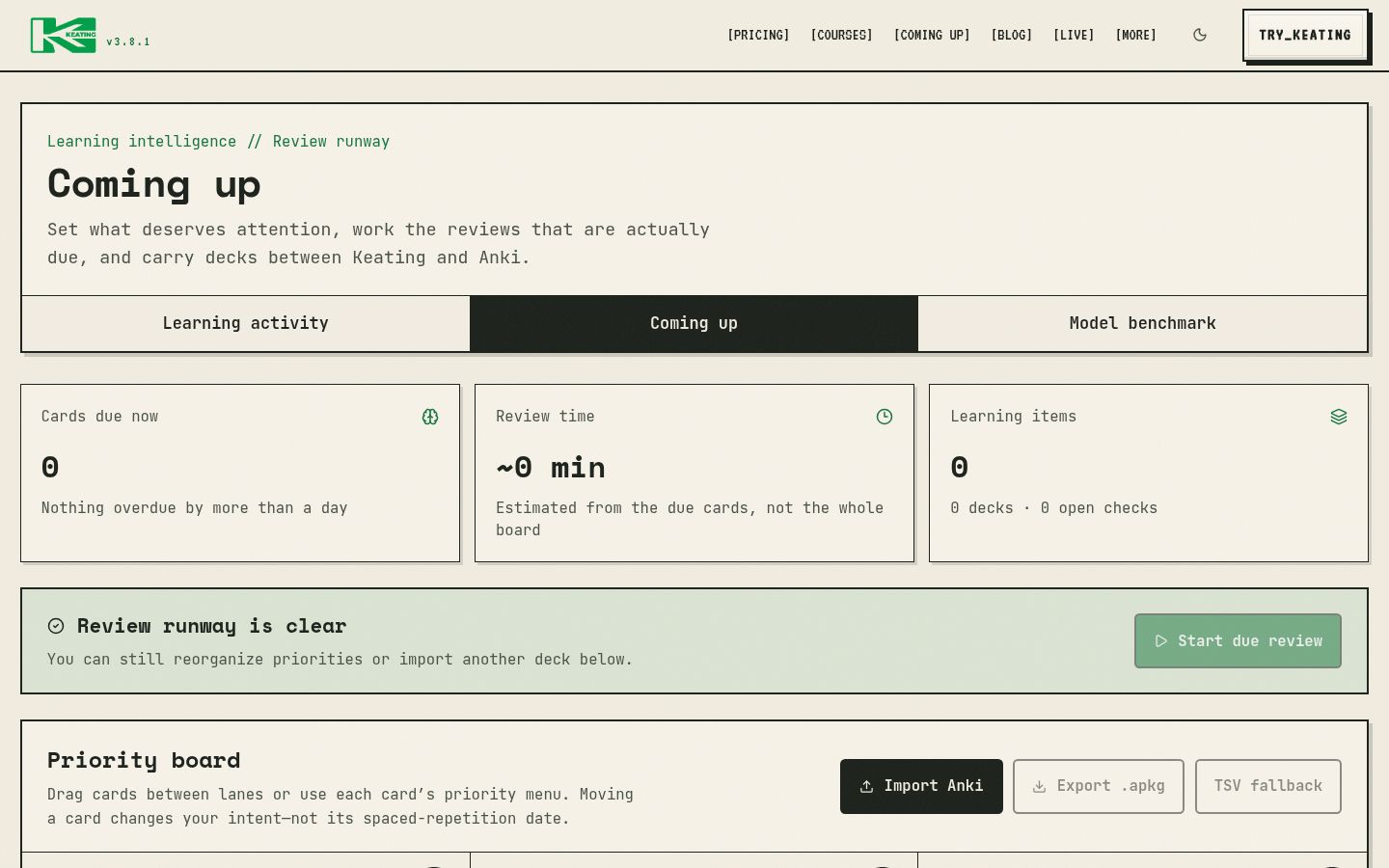
Coming up combines due flashcards with topics and open checks that may need attention. Start due review begins the cards currently due. Review this deck selects one deck; Practice in chat returns a topic to the tutor.
Changing Learning priority changes what receives attention without changing a card's review date. Recall ratings determine when cards are due. Use this distinction to focus on an upcoming need while keeping an honest record of what you can remember.
Read the original lesson before judging it
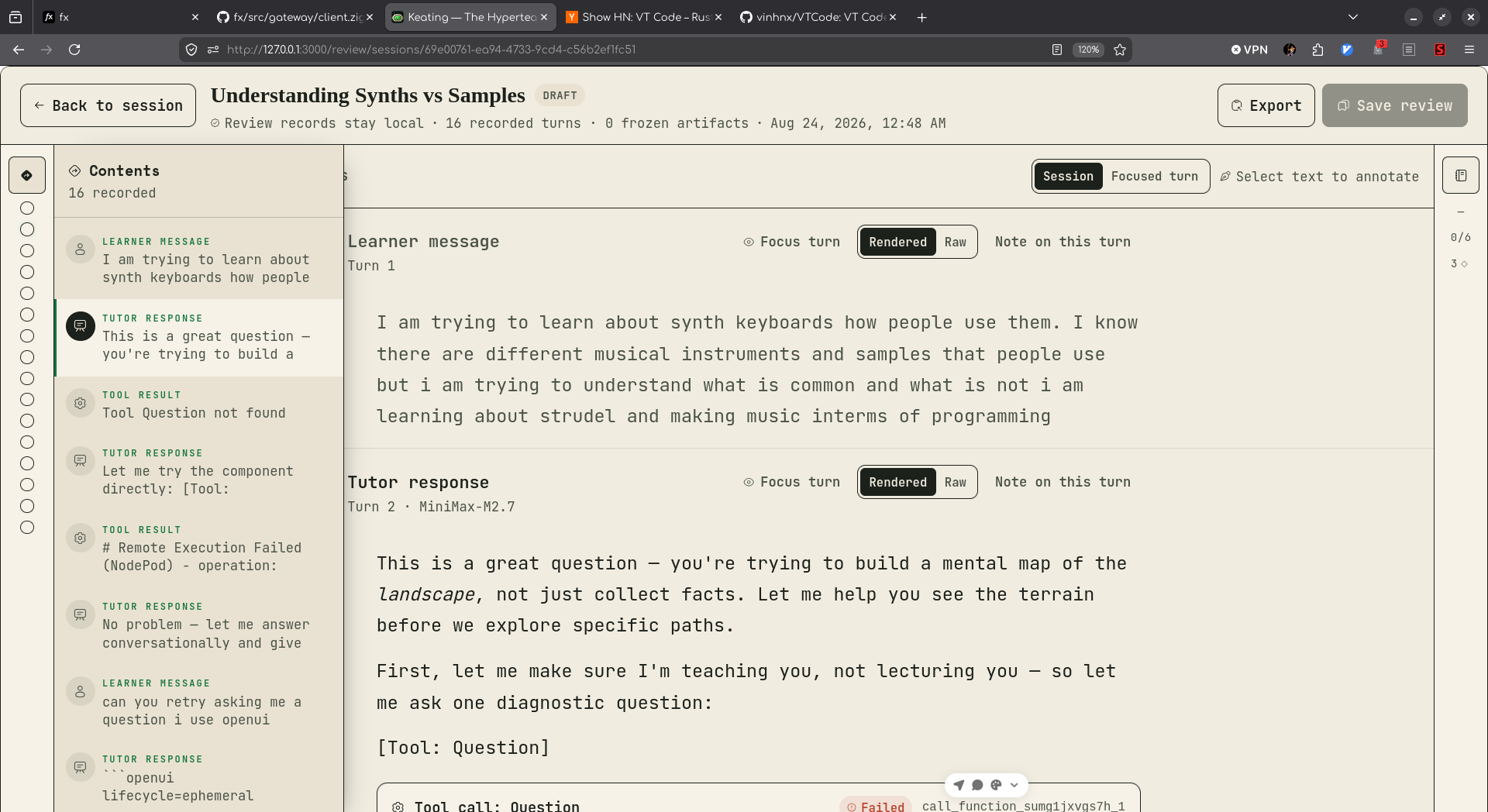
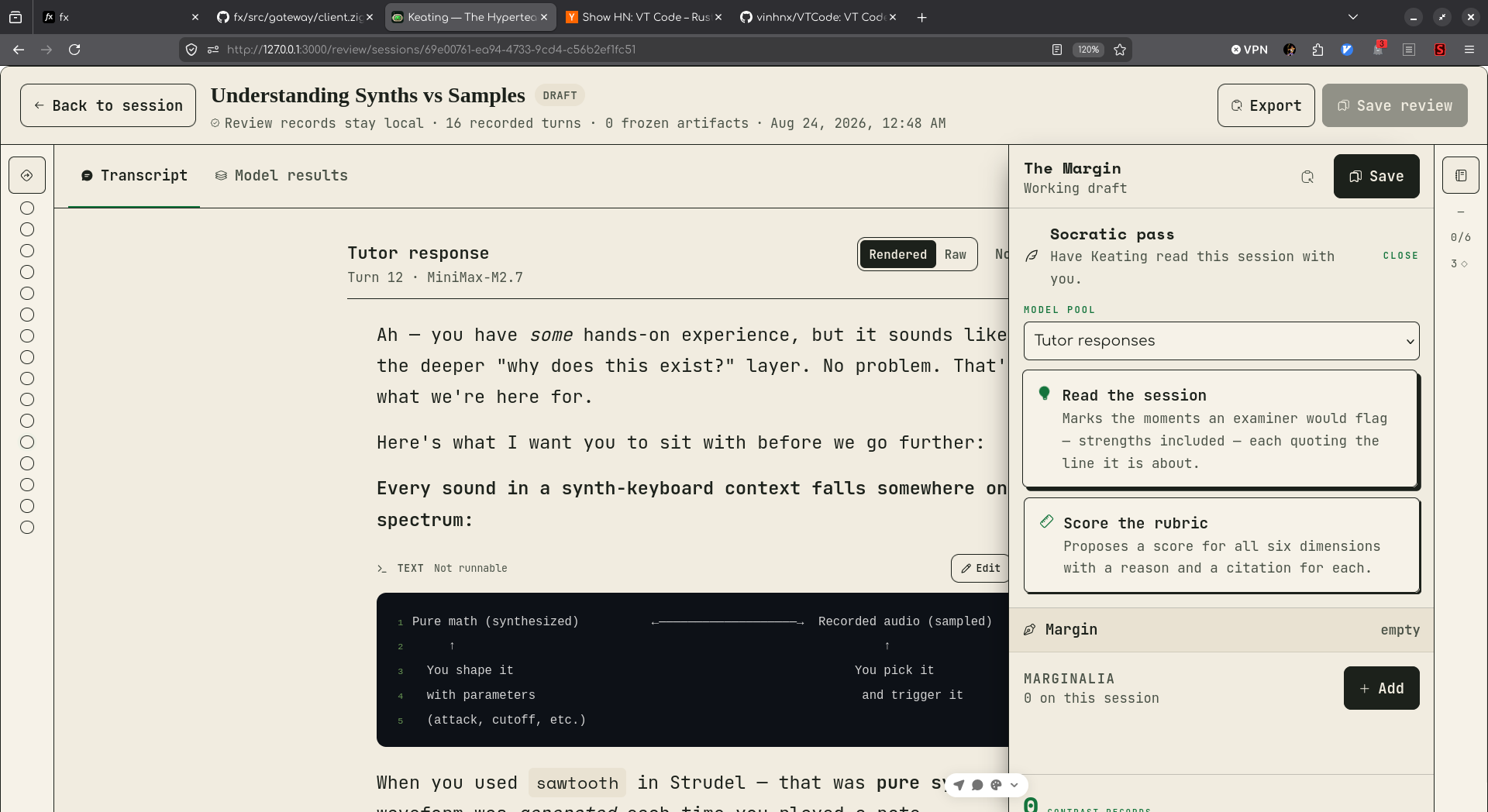
Choose Review session in chat to inspect the teaching record. Use Contents to move between turns and read the learner's question alongside the tutor response. Tool calls and their results help you distinguish what the tutor said it checked from what actually ran.
Use Rendered for normal reading and Raw when you need the exact source text. A useful review points to a concrete moment: an unexplained step, a misleading example, a helpful question, or an answer the tutor accepted too quickly.
Leave an anchored note
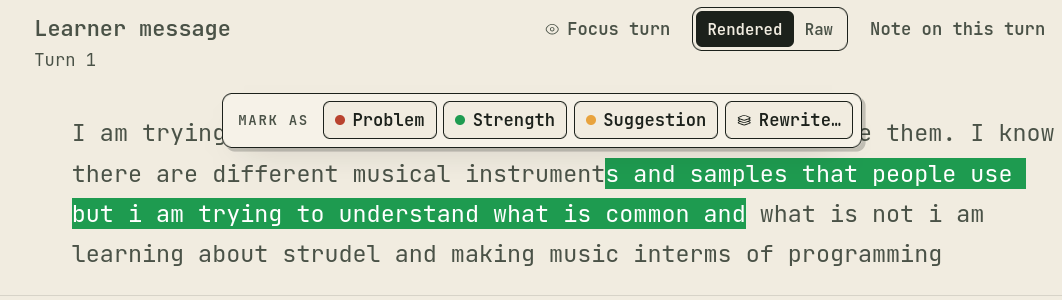
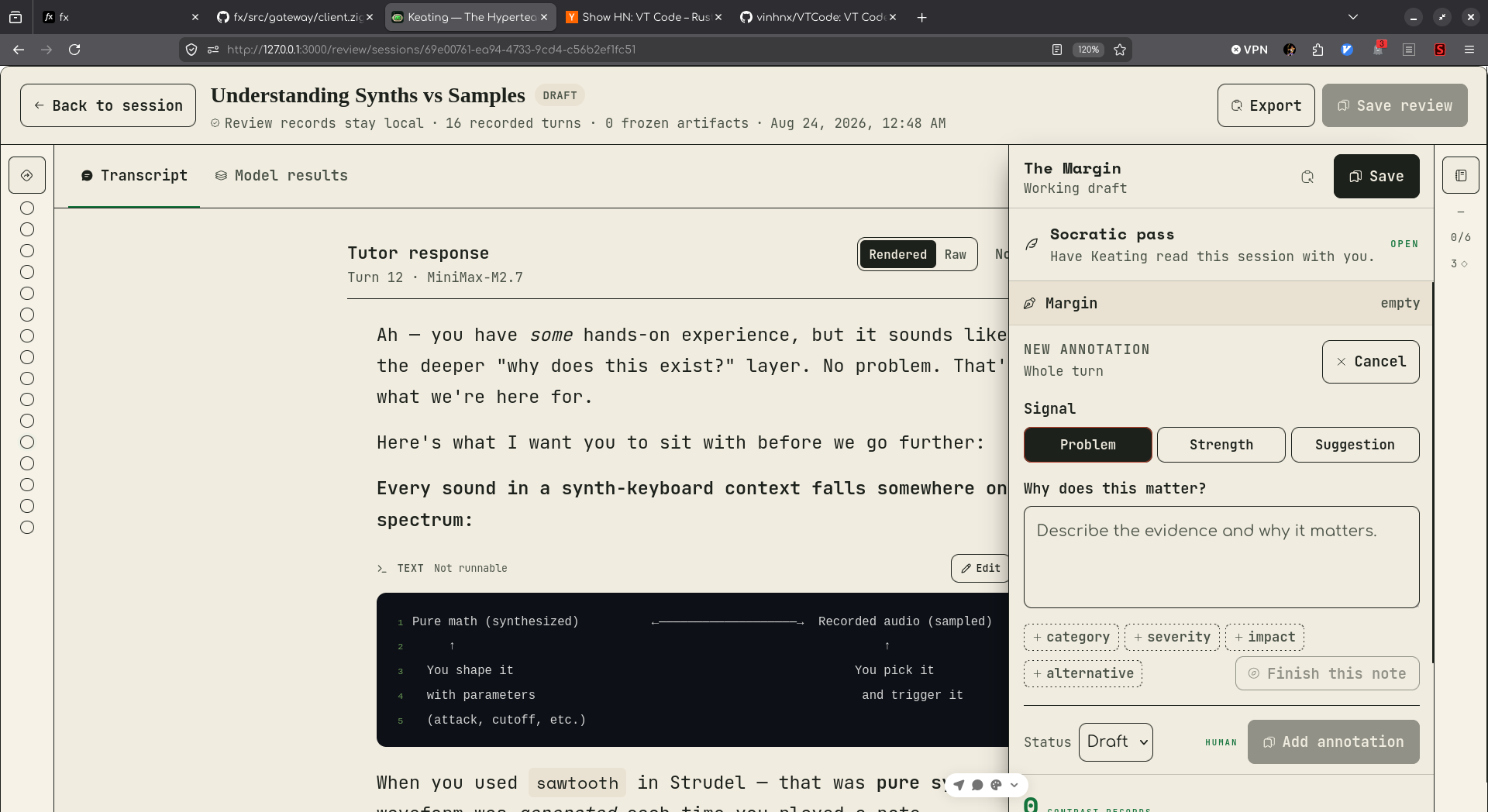
Select text in the transcript or an artifact, then choose Problem, Strength, or Suggestion. Explain Why does this matter? and save the note. Add detail such as severity or an alternative only when it helps explain your judgement.
Choose Rewrite to draft an alternative while retaining the original text. In Assess, record the rubric ratings, summary, and verdict you can support with evidence. Set the review status to Final when you have finished; use Export to keep a copy of the review.
Treat model-assisted review as a proposal
The review tools include Read the session, Score the rubric, and Finish this note. These ask a model to propose notes or ratings. Inspect the cited passage, accept the notes you agree with, dismiss the others, and use Apply only when you agree with a proposed rubric assessment.
A model judging another model's lesson is still model review. It does not independently verify all facts or demonstrate that a learner retained the material. Running a model-assisted pass sends review material to the selected model; check the provider you have chosen before starting it.
Use the review to decide what to try next: a clearer explanation, a smaller step, or a new problem that tests whether the idea carries over.
Protect work stored in your browser
Use the same browser profile and app address when returning to local sessions. Another browser, a private window, or another device may not have those records. Clearing site data can remove local work.
If chat warns that storage persistence is not enabled, choose Try again to request it again. The browser may still decline, and local records may be removed under storage pressure. Keep separate copies of work you cannot afford to lose; a local share link is not a backup outside the browser.