
Keep control of your learning data
Understand local storage, choose what leaves your device, and export or restore your lessons.
On this page
Know where your work is saved
Keating keeps browser conversations, learning artifacts, and settings in browser storage. Provider keys you enter in the website are stored locally too. Another browser profile or device has separate storage.
Study rooms also keep a shared transcript on the room server. A private continuation from a room or lesson is saved in your normal Chat history, with its usual sync, export, and sharing settings. Room membership does not grant access to that private history; using a shared browser profile can still expose the same local records.
A Not Organic account manages hosted access and account credit; signing in is not an automatic backup of your browser's lesson library. Native mobile learning storage is also local to the device. Desktop peer-to-peer sync is a separate device-connection feature, not a promise of account-based cloud backup.
Clearing site data or losing a device can remove local work. Export a copy before changing browsers, deleting app data, or uninstalling.
Understand what leaves the device
When you use a remote model, the prompt and relevant conversation material are sent through the configured connection to the service providing the response. Attachments and speech may also be sent to the services used for those features. Review your chosen provider's data practices before submitting private material.
In a study room, Keating runs from one permitted member's browser using that member's chosen model provider. Review the join disclosure before posting. Continuing privately uses your own chosen Chat model; opening the copied source does not run inference or send a question until you choose Send message.
A browser or native offline model generates locally. Other features you choose, such as sharing, online speech, or optional evaluation sharing, can still send data out. Local generation does not turn those features off.
Keep API keys in credential fields. A key pasted into a conversation becomes conversation content and can be included in a model request, share, or export.
Choose analytics and evaluation settings
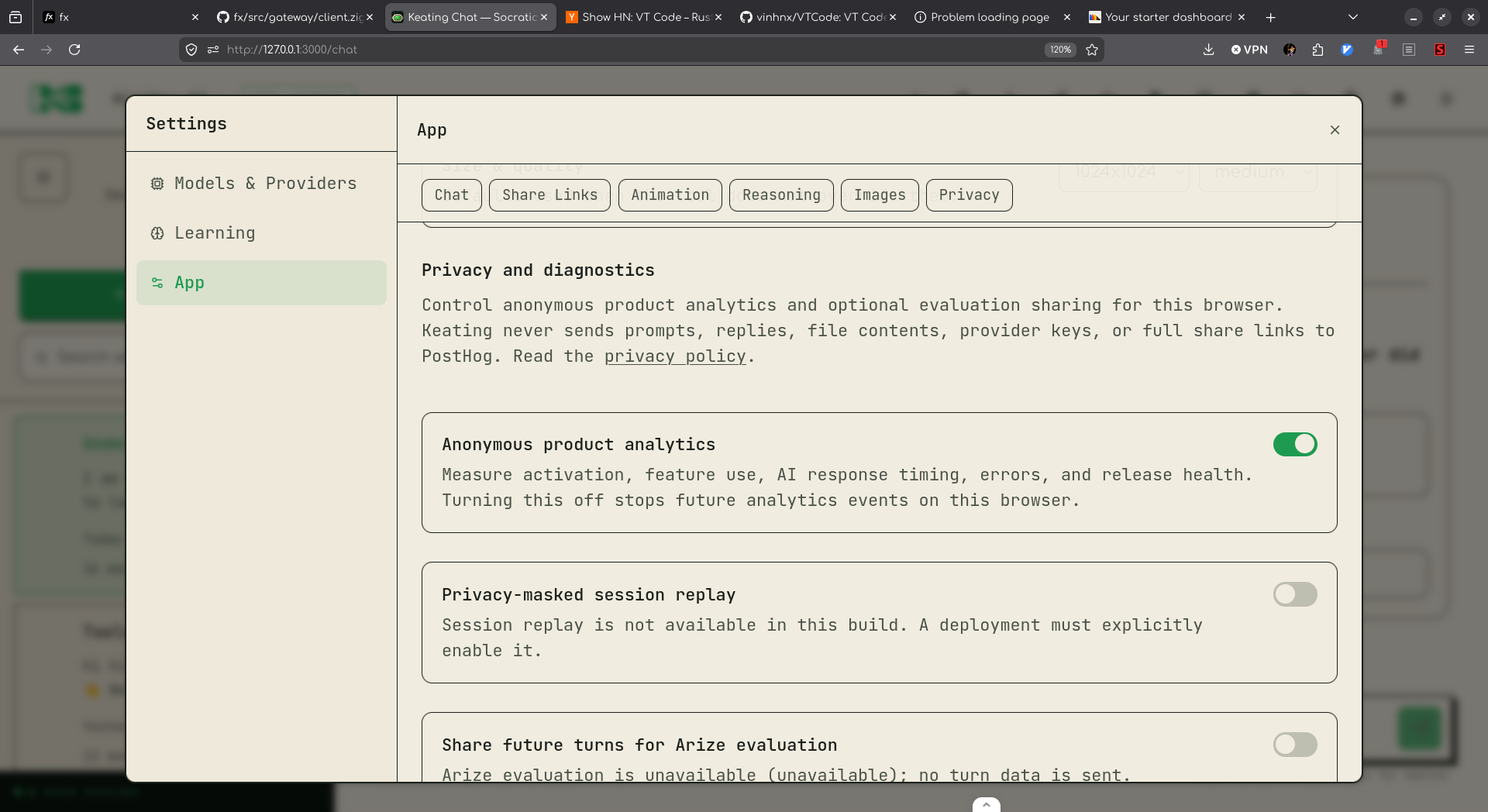
Open Settings → App → Privacy. These preferences apply to the browser where you change them. Controls that are unavailable in the current build explain that in their description.
- Anonymous product analytics controls future product events, such as feature use and response timing. Keating excludes prompts, replies, file contents, provider keys, and full share links from these PostHog events.
- Privacy-masked session replay controls interaction recordings where the deployment offers them. Text, inputs, and other sensitive page details are masked. Replay also depends on product analytics being enabled.
- Share future turns for Arize evaluation is separate and off by default. Where enabled, it may send the current visible prompt and final visible reply for future turns. Read its description: some deployments permit metadata only. Turn it off to stop future submissions.
Export a copy of your lessons
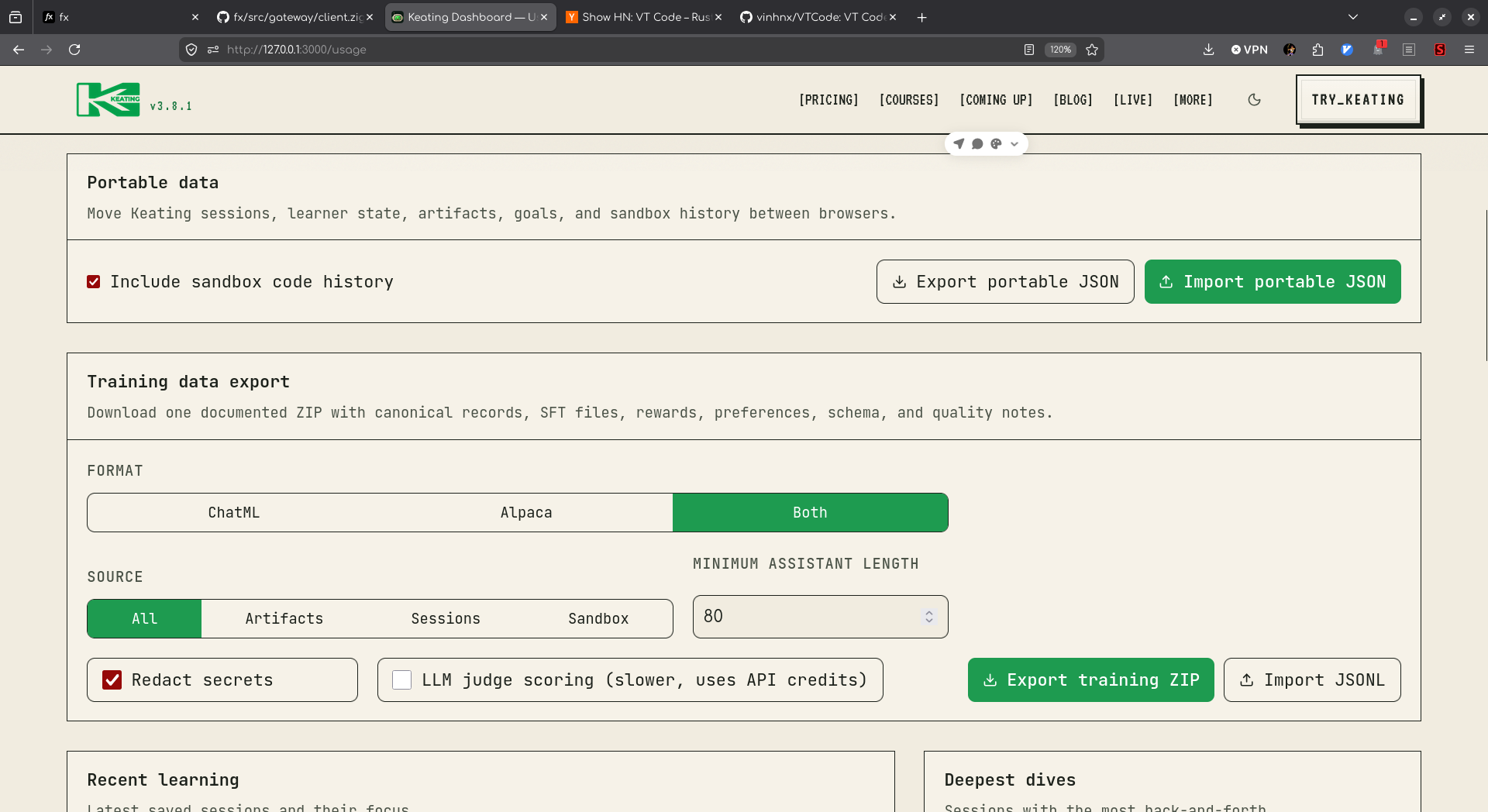
Open Learning usage and find Portable data. Choose whether to keep Include sandbox code history selected, then choose Export portable JSON. Save the downloaded keating-portable-data.json somewhere you can find from your next device.
The portable export includes saved sessions, learner state, learning artifacts, goals, quizzes, flashcards, and review records. Sandbox code history is optional. It does not transfer provider sign-ins, API-key settings, or downloaded model files.
Wait for the export confirmation and check that the file downloaded before clearing any data. The JSON contains your learning content as readable text; store it as carefully as the original notes.
Restore in another browser
Open Keating in the destination browser, visit Learning usage → Portable data, and choose Import portable JSON. Select your saved export and wait for the import summary. Open a session to check its contents before discarding the original copy.
Export any existing work in the destination browser first. An import writes sessions and records with their saved identifiers, so importing an older copy can replace a matching saved record.
Reconnect model providers on the destination device and download any local models again. A successful data import does not sign you in to those services or restore model downloads.