Connect Ollama, llama.cpp, or LiteLLM
Add a model server or gateway, choose the right address, and troubleshoot model discovery.
On this page
Choose a connection Keating can reach
A custom provider connects Keating to a separate model server. Ollama and llama.cpp can run models on your computer; LiteLLM is a gateway that can route requests to local or remote models. These are separate from models labeled (Browser) or (Offline).
The hosted app routes custom-provider requests through its server, which rejects local and private network addresses. Entering localhost in the hosted website does not connect it to your computer. Use a reachable HTTPS gateway supplied by your administrator, or a locally configured Keating environment that supports local targets.
The localhost addresses below describe each runner's local setup. For a hosted connection, use the HTTPS address provided for that service. If you want local generation in the hosted website without running a separate server, choose a compatible browser model.
Add the provider in Settings
Saving a provider can succeed even when model discovery fails. Read the notice, check the connection, and try a short text conversation before relying on it for a lesson.
- Open Settings → Models & Providers → Custom Providers and choose Add Provider.
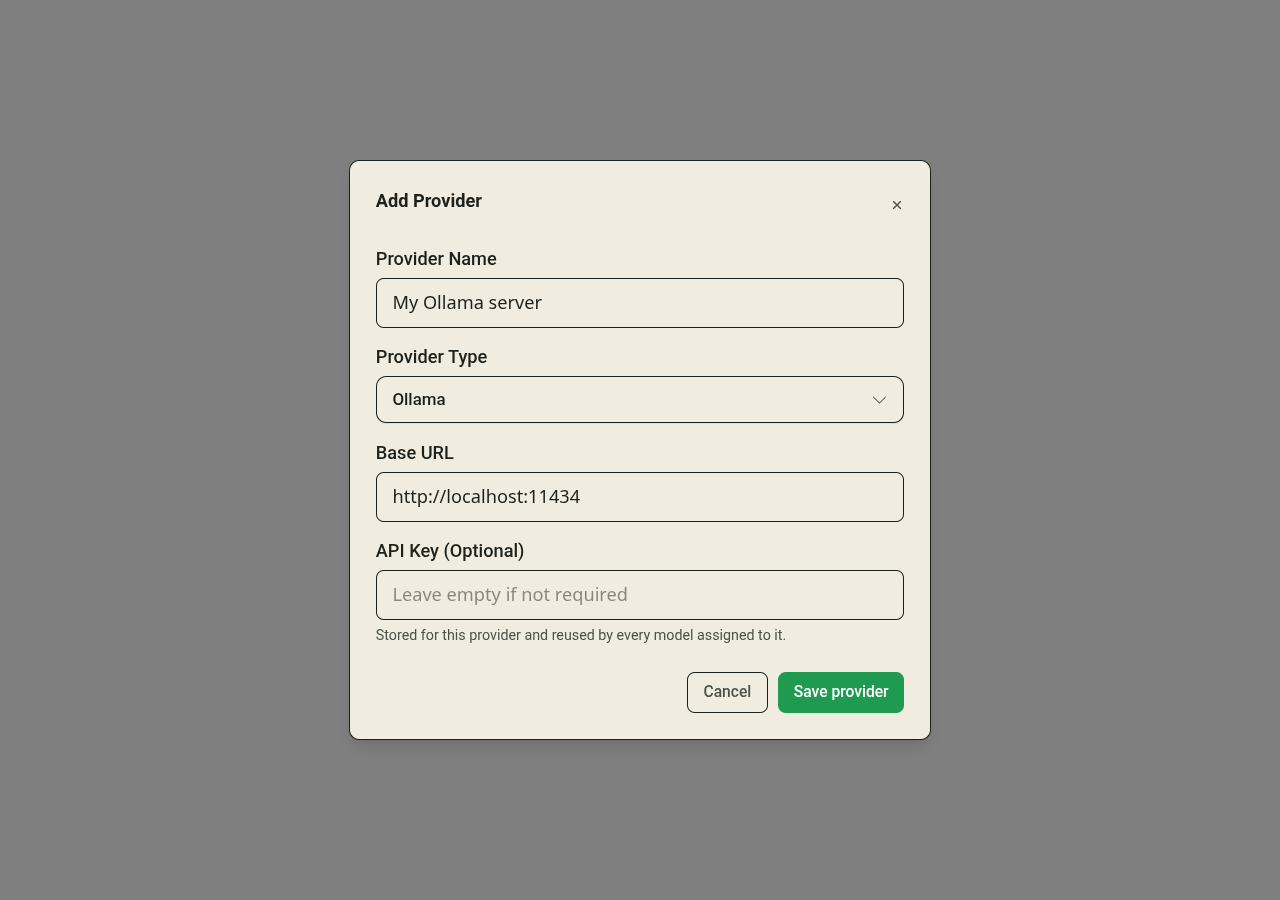
- Choose the provider type, enter a Provider Name you will recognize, and check Base URL. For LiteLLM, choose AI Gateway as the provider type and LiteLLM as Gateway Kind.
- Use API Key (Optional) if your server or gateway requires a key. For a shared gateway, use the access key its administrator gives you.
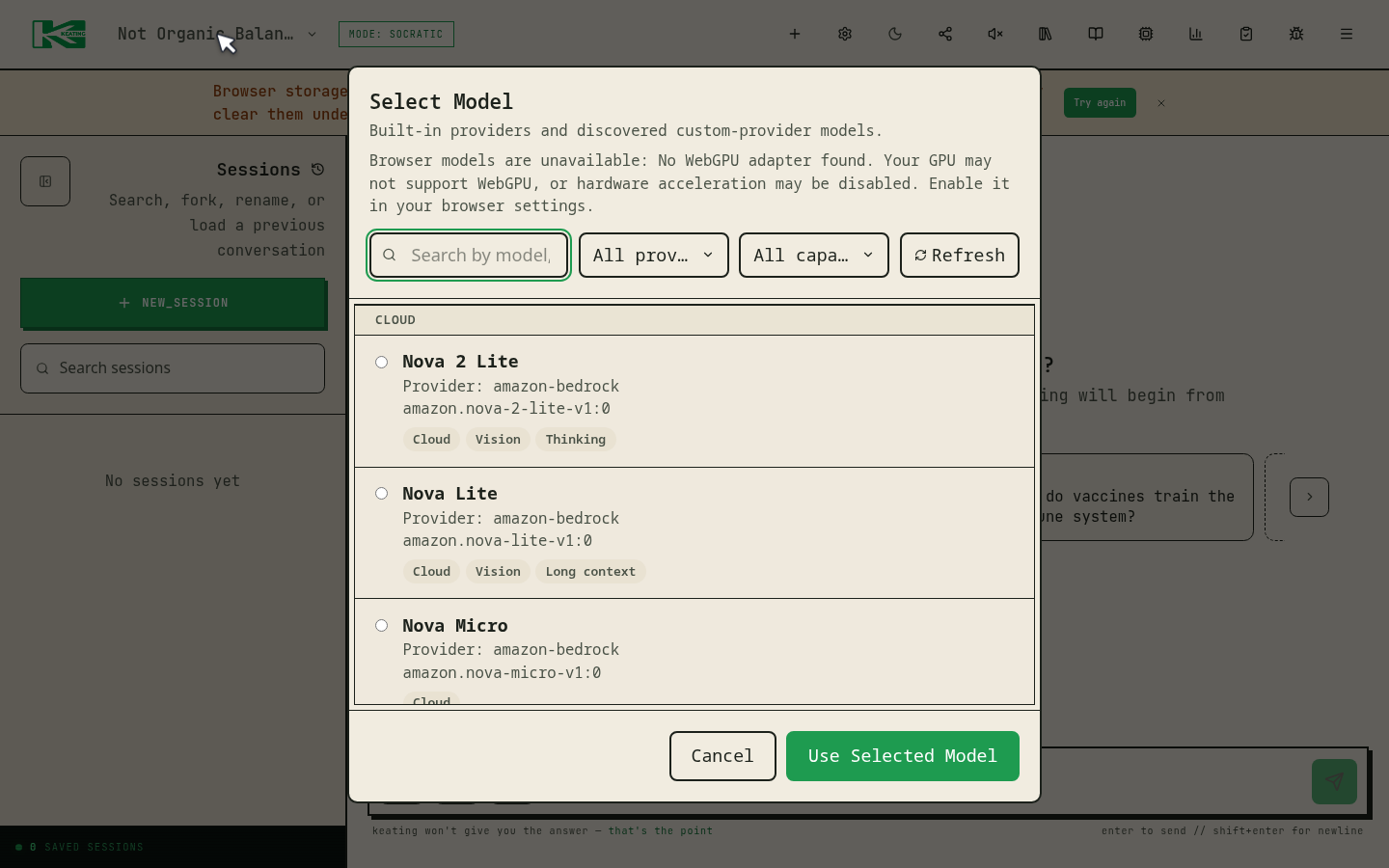
- Choose Save provider. Keating attempts to discover models. Close Settings, open Find a model from the chat header, and select a model under your provider's name.
Ollama
Install Ollama for your operating system and start its app or service. If you run it manually, use ollama serve in a terminal and keep it running. In another terminal, download a model with tool support, such as qwen3:4b, then try it in Ollama before connecting Keating.
Choose Ollama in Add Provider. Its local Base URL is http://localhost:11434, without /v1. A standard local Ollama service does not require an API key. Keating's Ollama discovery only lists models that report tool support; a model working in Ollama alone does not guarantee it will appear in this list.
ollama pull qwen3:4b
ollama run qwen3:4bllama.cpp
Install or build llama.cpp using its current server documentation, and download a GGUF model supported by that version. Start llama-server with the file you downloaded. Replace /path/to/model.gguf below with your actual file path; the alias gives it the model name tutor.
Choose llama.cpp in Add Provider. Its local Base URL is http://localhost:8080, without /v1. Save the provider and select the discovered tutor model. If the server uses authentication, enter its key in API Key (Optional).
llama-server -m /path/to/model.gguf --alias tutor --host 127.0.0.1 --port 8080LiteLLM
If someone manages a LiteLLM gateway for you, ask for its HTTPS base address, access key, and model names. Choose AI Gateway in Add Provider, set Gateway Kind to LiteLLM, and enter those connection details. A gateway's location does not tell you whether its models run locally or in the cloud.
For a local example with uv installed, install LiteLLM's proxy package and start it with an Ollama model you have already downloaded. Keep Ollama running. The local LiteLLM Base URL is http://localhost:4000.
When a gateway routes to a cloud provider, configure that provider's credentials on the gateway and give Keating the gateway access key. The upstream provider's charges and data handling still apply.
uv tool install 'litellm[proxy]'
litellm --model ollama/qwen3:4b --host 127.0.0.1 --port 4000When discovery or a response fails
- Check that the model server is running and can answer a prompt through its own interface. A saved address does not start the server or download a model.
- Check the address from the environment making the connection. A hosted server cannot reach a service that exists only on your laptop's localhost. HTTP or private-target errors need a supported connection, not repeated retries.
- Use the service's base address rather than its chat page or a full chat/completions URL. Keep /v1 off the Ollama and llama.cpp Base URL fields; Keating adds the paths it needs.
- If discovery returns no models, check that a model is loaded and allowed for your access key. For Ollama, check tool support. Where automatic discovery is unavailable, My Models → Add Model lets you add the exact model ID and assign it to your custom provider.
- Keep an authenticated HTTPS gateway's credentials in API Key (Optional). The current app handles its browser proxy automatically; there is no separate CORS proxy URL setting.