
Work with courses and sharing
Find course work, save submissions, invite collaborators, and choose between shared study rooms and private continuations.
On this page
Open a course workspace
Courses brings lessons, source material, practice, notes, and assignments together. Open an existing course or follow the invitation link supplied by its organiser. Which editing and collaboration controls you see depends on your course role and permissions.
If an access screen appears, read its message. Retry course access checks a failed connection again; Check account is shown when account access is needed. Hosted course workspaces may be unavailable in the running deployment. These controls do not establish that a hosted subscription is available to buy.
Use a course to organise repeated study
Select a lesson in the course workspace to read its material and work with the practice or assignments attached to it. Check the task instructions, deliverables, and any opening or due dates before beginning. Keep a question tied to the lesson specific: ask about the passage or step that is blocking you.
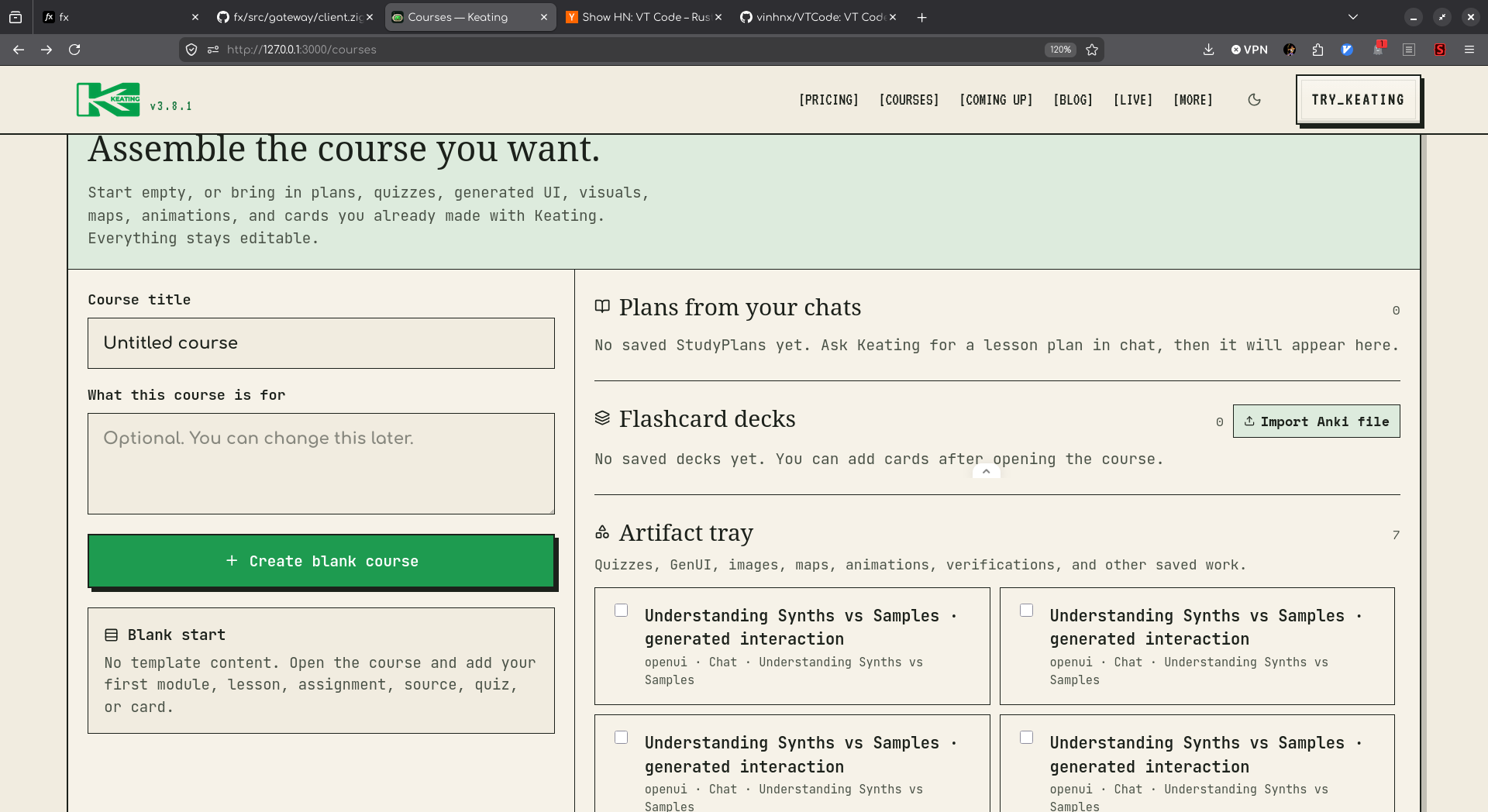
When creating a course, give it a concrete learning goal and a manageable scope. The New course builder is a starting point for assembling material you can return to. Review generated lessons and questions for accuracy and fit before inviting other people to rely on them.
Save a draft, then submit deliberately
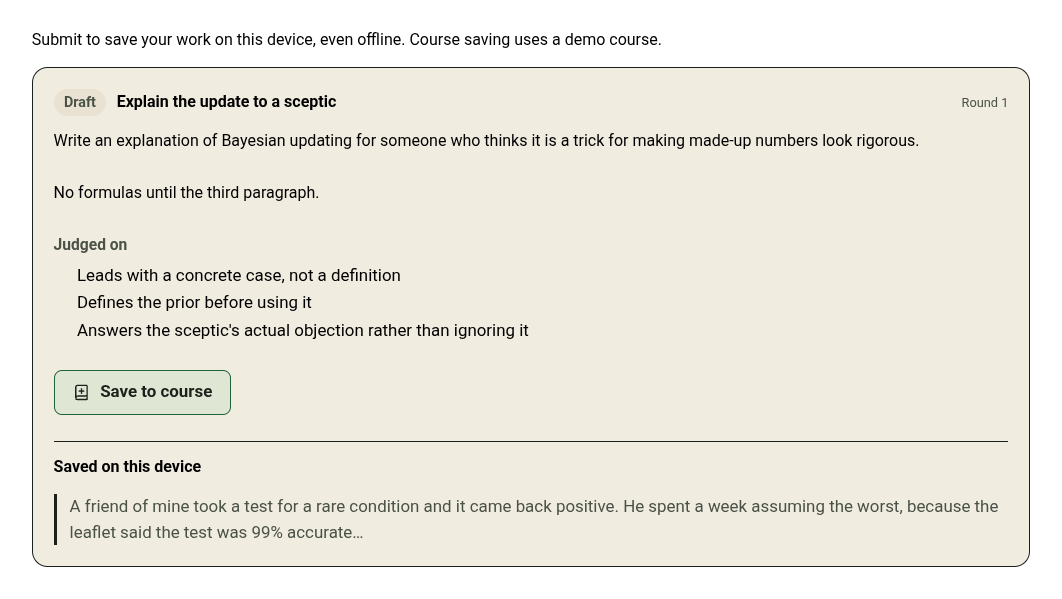
In an assignment, write your response and attach any required files. Save draft keeps a working revision; Submit records a submission. The attachment control allows up to 10 files of 25 MB each. Wait for files to finish saving before submitting.
Saved on this device confirms local saving. Delivered to course confirms that the course received the work. If delivery is queued or fails, keep your local copy and use Retry delivery after reconnecting. A local save is useful protection, but it is not confirmation that a teacher can see the submission.
Check Share submission with peers only when you want peer sharing for that submission. Review that choice before sending, especially when your response or attachments contain personal material.

Invite people with the right role
If your course permissions include inviting members, choose Invite. In Invite to this course, choose a role and use Create link and QR code, then Copy link. The dialog states the invitation's expiry and use limit.
Students work through lessons and control teacher access. Peers can co-work and comment, with deck editing governed by course settings. Teachers can edit lessons, invite members, and request fuller learner visibility. Choose the role that matches the work the person should be able to do.
Study with a group or continue privately
A study room is a shared conversation with classmates, teachers, and Keating. Course teachers can create a room from a lesson's Study rooms section; course members can review its join disclosure and join without another invitation. Standalone study groups use role-based invitation links and QR codes.
To work through a passage on your own, choose Continue privately below the lesson reading or on a public message when you are a learner in a room. Choose an exact excerpt, optionally prepare a question, and open your own Chat. The source stays shared; the private continuation does not complete a lesson or submit course work.